node-red-dashboard-2-energy-overview
Node-RED Dashboard 2.0 Energy Overview
An energy flow visualization widget for Node-RED Dashboard 2.0 that displays real-time energy flow between solar panels, inverter, home consumption, grid, battery, and electric vehicle.
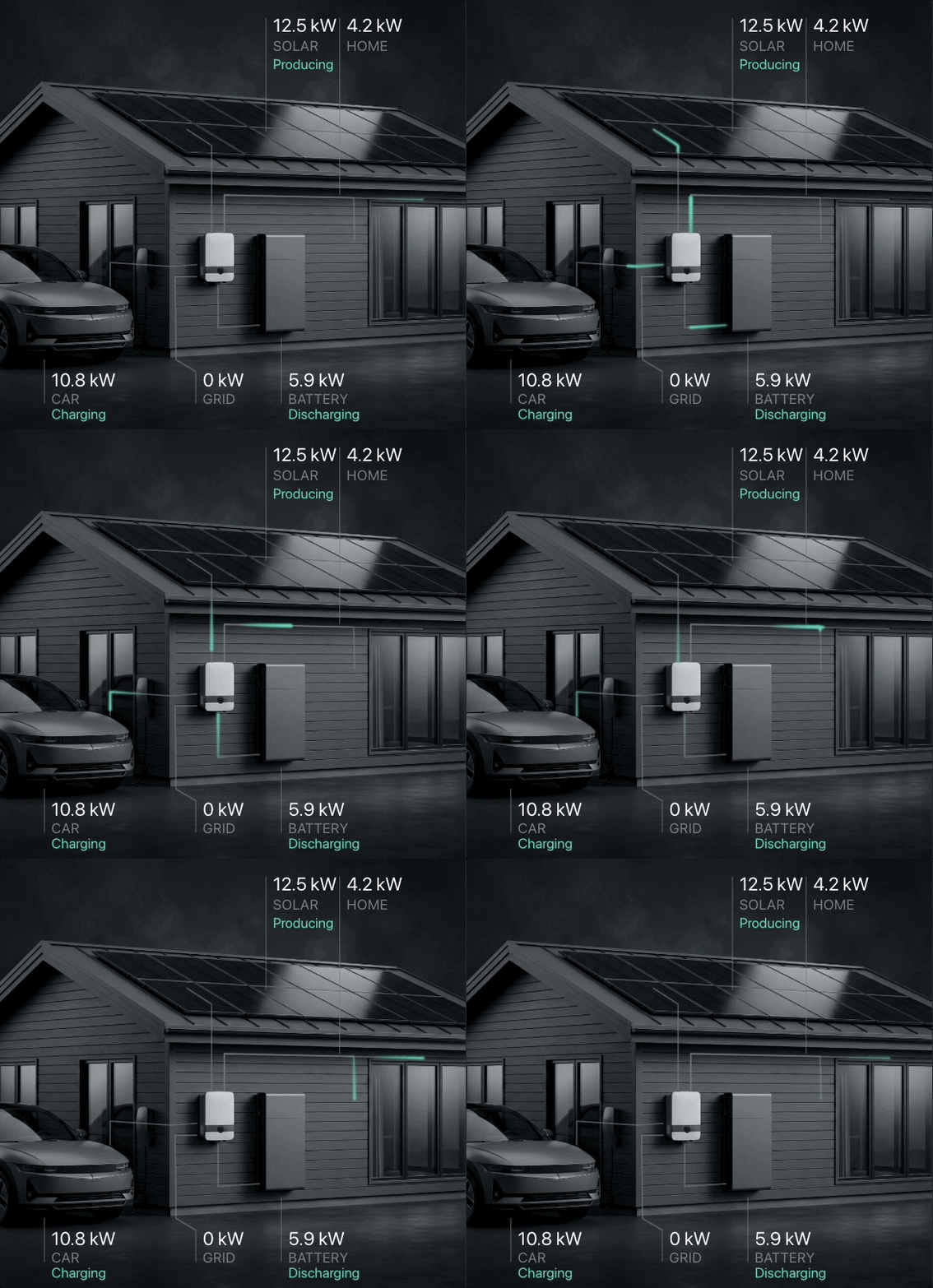
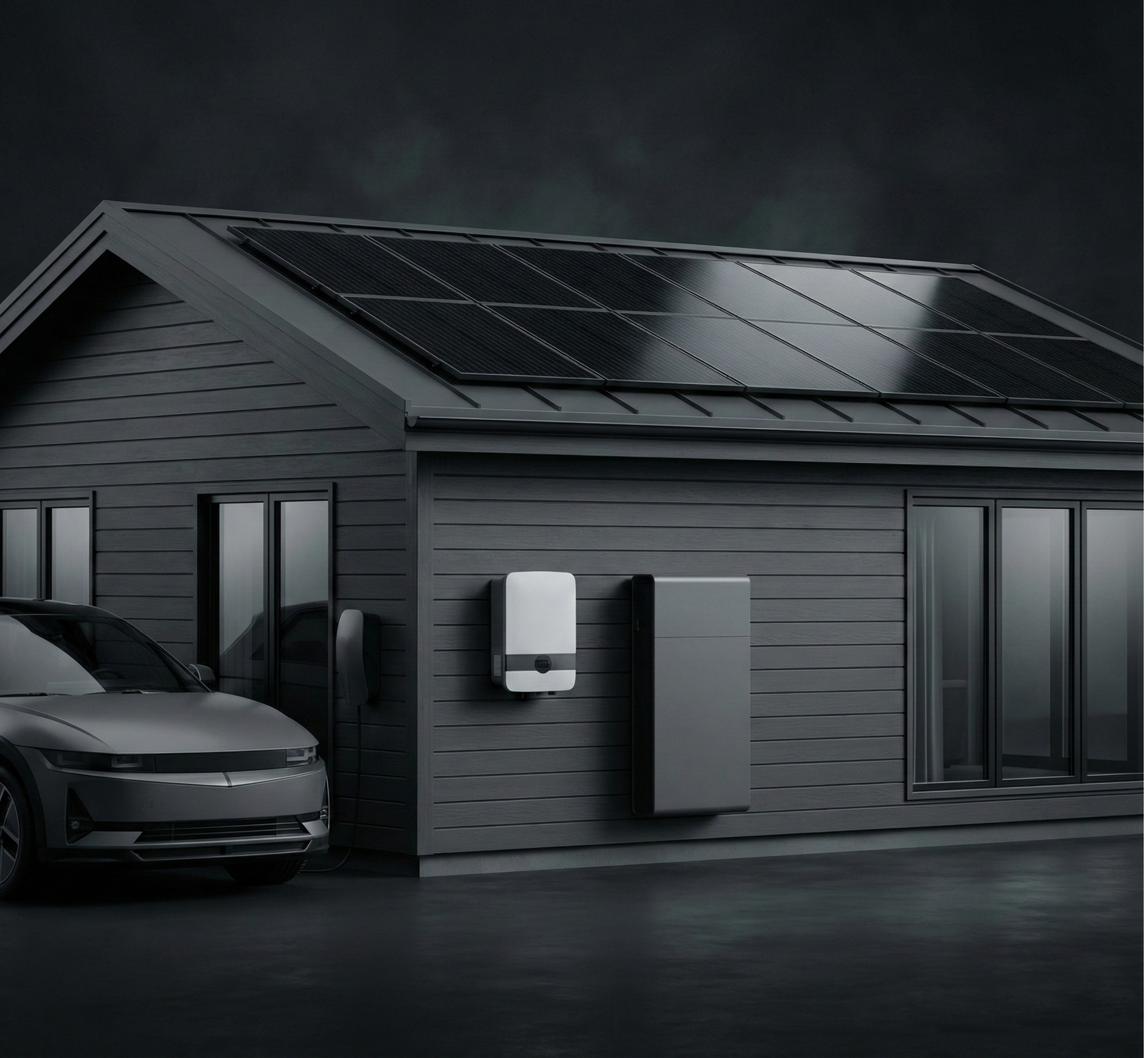
[!NOTE] This node comes with a default low-quality image built-in to keep the size of this node small. The high-fidelity version is available as a drop-in replacement where all paths can remain the same. To use the high-fidelity version, copy house.png to your Node-RED static folder and reference it in the widget configuration (e.g.
/house.png).
Features
- Animated pulse visualization showing energy flow direction
- Support for bidirectional flows (grid import/export, battery charge/discharge)
- Configurable entities — replace the built-in solar/home/grid/battery/car set with your own sources, sinks, and bidirectional flows
- Customizable labels with values and sublabels
- Dynamic pulse color configuration
- Custom house image support
- Responsive design that scales with widget size
Installation
Via Node-RED Palette Manager
Search for node-red-dashboard-2-energy-overview in the Node-RED palette manager.
Via npm
Due to Issue #1159, it might be difficult to pre-install this widget.
Usage
Basic Setup
- Add the “energy overview” node to your flow
- Configure the node with a Dashboard 2.0 group
- Send messages to control the energy flow visualization
Message Format
The node accepts msg.payload with routes and labels properties:
msg.payload = {
    routes: {
        solarToInverter: true,    // Solar panels producing
        inverterToHome: true,     // Power to home
        inverterToGrid: true,     // Exporting to grid
        gridToInverter: true,     // Importing from grid
        inverterToBattery: true,  // Charging battery
        batteryToInverter: true,  // Discharging battery
        inverterToCar: true,      // Charging EV
        carToInverter: true       // V2H/V2G (vehicle to home/grid)
    },
    labels: {
        solar: { value: "5.2 kW", sublabel: "Producing" },
        home: { value: "2.1 kW", sublabel: "Consuming" },
        grid: { value: "1.8 kW", sublabel: "Exporting" },
        battery: { value: "5.8 kW", sublabel: "Charging" },
        car: { value: "7.4 kW", sublabel: "Charging" }
    }
};
Note: Bidirectional routes (grid, battery, car) are mutually exclusive - enabling one direction automatically disables the opposite.
Labels are merged with existing values, so you can update individual labels without resending all of them.
The route and label keys above are the built-in defaults. With custom entities, the keys are derived from your own entity names instead.
Reset State
Use msg.reset to clear all stored routes and labels before applying new values:
msg.reset = true;  // Any value works, just needs to be defined
msg.payload = {
    routes: { solarToInverter: true },
    labels: { solar: { value: "5 kW" } }
};
This clears the existing state first, then applies only the values in the current message. Without msg.reset, routes and labels are merged with existing state.
Dynamic Properties
Update widget configuration at runtime using msg.ui_update:
msg.ui_update = {
    pulseColor: "#00ff00",
    image: "/path/to/custom-house.png"
};
Complete Example
// Example function node to update energy overview
msg.payload = {
    routes: {
        solarToInverter: true,
        inverterToHome: true,
        inverterToBattery: true
    },
    labels: {
        solar: { value: "4.8 kW", sublabel: "Peak production" },
        home: { value: "1.2 kW", sublabel: "Low usage" },
        battery: { value: "72%", sublabel: "+2.1 kW" }
    }
};
return msg;
Configuration Options
| Property | Description | Default |
|---|---|---|
| Pulse Color | Color of the animated pulses | #4dcbbf |
| Image URL | Custom background image URL | Built-in house image |
| Custom Paths | JSON { entities, energyPaths, labels } defining custom entities and their drawn paths/labels |
(empty, uses defaults) |
Custom Entities
By default the widget shows five entities: solar (source), home (sink), and grid, battery, car (bidirectional). Set the Custom Paths field to a JSON object with an entities block to replace that set with your own:
{
  "entities": {
    "solar": { "direction": "source" },
    "home": { "direction": "sink" },
    "generator": { "direction": "source" }
  },
  "energyPaths": { "...": "drawn path geometry" },
  "labels": { "...": "label positions" }
}
directionissource(into the inverter),sink(out of the inverter), orboth(bidirectional).- Route keys are derived from the entity name:
source→<name>ToInverter,sink→inverterTo<Name>,both→ both. So ageneratorsource is driven bymsg.payload.routes.generatorToInverterand labelled viamsg.payload.labels.generator. - Providing
entitiesreplaces the defaults entirely; omit it to keep them.
Draw the energyPaths and labels geometry with the Path Tracer Tool. For a full worked example, see the node’s built-in help (the editor’s info panel) and examples/energy-overview-generator-example.json.
Custom House Image
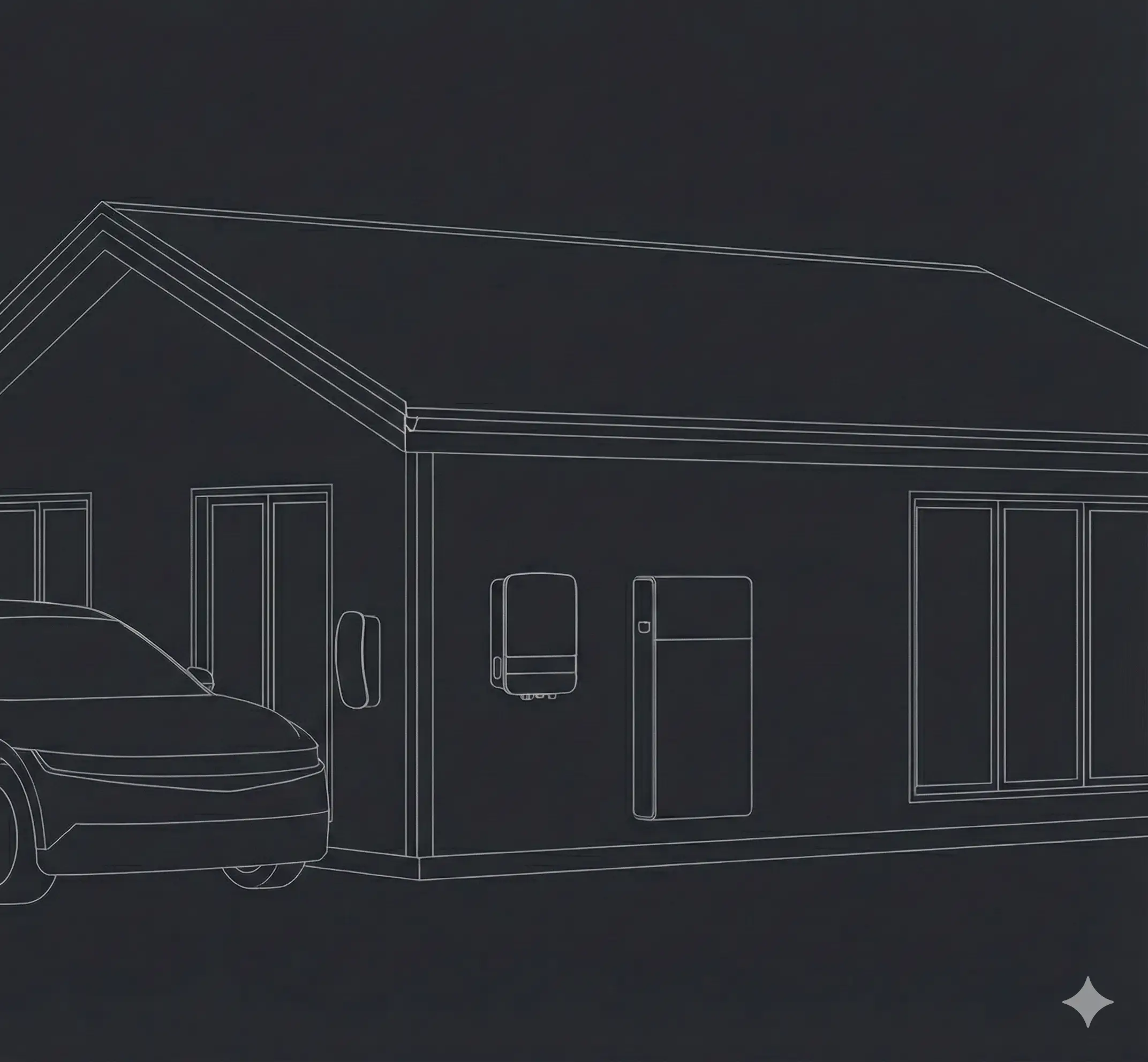
You can use your own house image. The widget expects the image to have approximately the same layout as the default image (1056x992 pixels reference size). The widget will scale paths automatically based on the actual image dimensions.
To create custom paths for your image, you can use the included energy-path-tracer.html tool, or access it online at:
https://pakerfeldt.github.io/node-red-dashboard-2-energy-overview/energy-path-tracer.html
Path Tracer Tool
The Energy Path Tracer is an interactive web-based tool that helps you create custom energy flow paths for your house images. It provides a visual interface where you can:
- Manage entities: add, rename, or delete entities and set each one’s direction (source/sink/both)
- Click to trace paths: Draw energy flow routes and label positions by clicking on your house image
- Snap to directions: Hold Shift while drawing to snap lines to horizontal/vertical directions
- Import/Export configurations: Save and load your path configurations as JSON
- Real-time preview: See exactly how your paths will look with direction indicators
- Support for custom images: Upload your own house image to create custom layouts
How to use:
- Open the Path Tracer Tool
- Load a custom house image (or use the default)
- Add, rename, or delete entities and set each one’s direction (source/sink/both)
- Click “Draw” on an entity’s segment or label, then click on the image to trace it
- Export the generated JSON configuration
- Paste the JSON into your Node-RED energy overview node’s “Custom Paths” field
Creating Custom House Images with Gemini Nano Banana
You can generate custom house images for your energy overview widget using Gemini’s nano banana video generation capabilities. This allows you to create unique, personalized visualizations of your energy system.
Example Prompt for Image Generation
Here’s an example prompt that was used to generate the default house image:
A minimalist, hyper-detailed 3D render of a smart energy system, in isometric view.
The scene features a modern, low-angled roof, dark gray building in horizontal wooden
panel, with 8 sleek solar panels with black glass look with slight reflection.

The camera angle should prioritize the front facade as the primary visible surface.
Only the front facing wall is visible and it features a white, wall-mounted inverter
to the left, and without any window between, a wall-mounted, large battery on the right.

The house also features a few large windows with black frames, mild reflection in the
windows. On the left side of the house stands a neutral, modern, dark gray electric
vehicle (EV) without car logo visible that doesn't look exactly like a Tesla. Only
the front of the car is visible as the car enters the image from the left. Its head
lights are off.

Close to the car is a neutral, dark car charger on the wall that blends in with the
house. Low-key, moody studio lighting with a dark, indistinct background. Clean lines,
monochromatic color scheme (dark grays and blacks), product visualization style,
cinematic. The camera focuses on the car, inverter, battery and solar panels.

The camera is positioned such that it leaves roughly 1/7th of the vertical space at
the top and bottom free from the house without hard cropping or cutting the house.

Size 2144 × 1984 pixels
Tips for Custom Images
- Maintain the isometric view for consistency with the energy flow paths
- Ensure clear visibility of key components (solar panels, inverter, battery, EV charger)
- Consider the 2144 × 1984 pixel aspect ratio for optimal display
License
Apache-2.0